
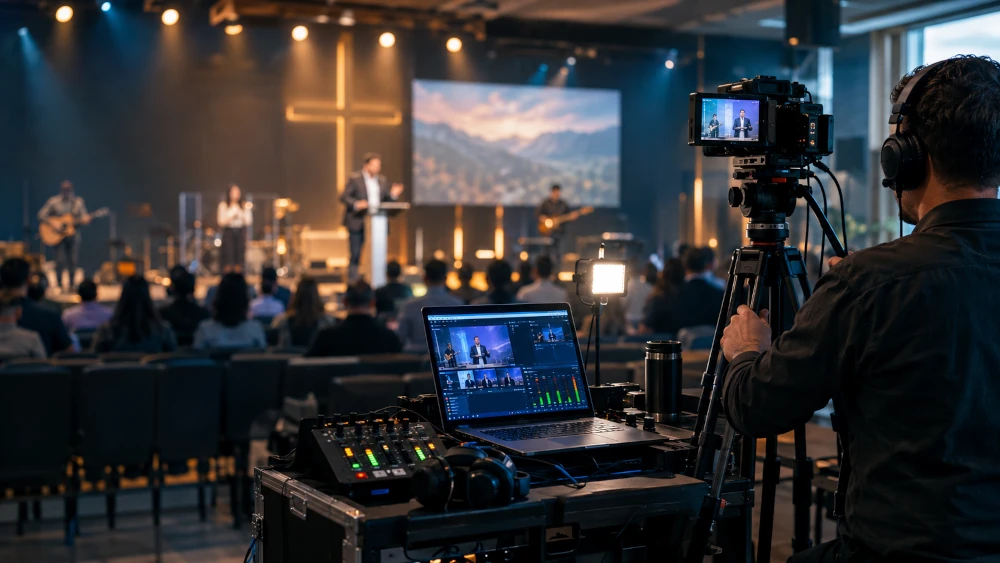
Live streaming a worship service can extend a church's ministry of accompaniment to the sick, travelers, families with small children, new visitors, and members who for some reason cannot be present. But a good stream does not depend on buying the most expensive camera: it depends on having a clear purpose, intelligible audio, a stable connection, defined roles, prior testing, and respect for copyright and privacy.
This practical guide explains how to plan, set up, and improve a live stream of worship services at different budget levels. It is designed for small and medium-sized churches and volunteer teams that want to offer a dignified, sustainable digital experience centered on the message.
Essential principle: prioritize audio over image. A stream with acceptable video and clear voice can serve very well; a stream with excellent image and confusing audio usually causes people to disconnect.
Define the purpose before buying equipment
The stream must respond to a specific ministry need. It is not just about “being on the internet,” but about deciding whom the church wants to serve and what experience it wants to offer those who participate remotely.
Some common goals are to accompany absent members, help visitors get to know the community, rebroadcast sermons, offer access to people with reduced mobility, or maintain connection during seasons of travel, illness, or emergency. Each goal requires different decisions about schedule, duration, interaction, cameras, moderation, and video archiving.
Before starting, agree on these questions with the leadership:
- Will the entire service be streamed, only the sermon, or an edited version?
- What will be the main platform: YouTube, Facebook, the church's own website, or several at once?
- Who will operate the stream each week?
- What data, faces, or pastoral moments should not appear on camera?
- How will copyrighted songs, lyrics, tracks, and videos be handled?
- What action is expected from the viewer: visit, request prayer, leave their information, join a group, or watch the replay?
Choose the right platform
For most churches, YouTube and Facebook are the simplest starting points because they offer reach, replay, and interaction tools. YouTube lets you configure resolution, frame rate, and bitrate from the encoder, monitor stream health, and review messages during the event. Facebook Live lets you publish through Live Producer and connect it to an encoder using the RTMPS information provided when the broadcast is created.
| Platform | Advantages | Limitations | Use it when… |
|---|---|---|---|
| YouTube Live | Automatic archive, searchability, easy-to-share links, resolution and stream health control | Automatic claims for protected music may apply | You want to build a library of sermons and permanent broadcasts |
| Facebook Live | Immediate reach among followers, comments, and social sharing | Content can quickly lose visibility in the feed | The community already interacts mainly on Facebook |
| Church website | Your own branded experience, centralizes information, donations, prayer, and next steps | Requires embedding or integrating a video provider and maintaining the site | You want the stream to be a gateway into the digital ecosystem |
| Multistreaming | Broadcast to multiple audiences at the same time | Increases complexity and may require more bandwidth or an external service | The team already has a handle on the operation and has a clear reason to be on multiple channels |
The practical recommendation is to start with a single main platform. A church with little experience gets better results with a stable stream on YouTube than with three poorly managed channels. Once the workflow is reliable, you can add Facebook or embed the video on the website.
The minimum team you really need
A church can start with simple resources if it takes care of three areas: stable video capture, direct audio, and a reliable connection. It is not mandatory to start with a professional studio.
| Level | Recommended equipment | Expected result |
|---|---|---|
| Starter | Smartphone or webcam, tripod, computer, audio from console or external microphone, wired internet | Simple preaching or worship service with stable image and understandable voice |
| Intermediate | Camera with HDMI output, capture card, computer with OBS, audio console, LED light, optional second angle | Cleaner production, lower thirds, slides, and scene changes |
| Advanced | Two or more cameras, switcher, PTZ cameras, monitors, intercom, local recording, dedicated network, and production team | Full worship service with live production and more robust operation |
The basic equipment described in church streaming guides includes a camera, tripod, microphones, mixer, audio interface, and encoder. The system signal must be converted into an internet-playable format using encoding software or hardware. For a simple start, one camera, a computer, a tripod, and a good audio source may be enough.
Camera: stability before resolution
A modern phone, webcam, or camera with HDMI output can work to get started. What matters most is that it stays fixed, well framed, and does not depend on someone holding it throughout the entire worship service. A tripod eliminates unnecessary movement and allows you to repeat the same framing every week.
Place the camera at an elevated point or at the appropriate level to prevent attendees' heads from blocking the image. If streaming a preacher, avoid low angles, excessively wide shots, or framings that awkwardly cut off the face. A production guide recommends an eye-level camera, tripod, and a clean background without reflections or distracting elements.
Audio: connect the console, not the phone's microphone
The built-in microphone on a phone or camera often picks up room reverberation, crowd noise, and an unclear mix of voice and music. Whenever possible, take a direct signal from the sound console to the computer, capture card, or encoder.
The recurring technical recommendation is to get a clean signal from the main console; direct audio from the *soundboard* reduces ambient noise and notably improves the clarity of the sermon and songs. Ask the audio person for a mix specifically for streaming: the mix that sounds good inside the auditorium does not always sound the same through headphones or phones.
Quick audio checklist:
- Use an auxiliary output or matrix from the console for the stream, if possible.
- Include the main voice, instruments, and room ambience with balance.
- Avoid saturation: don't let the meters constantly hit red.
- Test the audio with common headphones and from a phone.
- Have a backup microphone for the preacher or moderator.
- Record a local test copy to listen to before going live.
Lighting: make the message visible
An inexpensive camera with good lighting can look better than an expensive camera on a dark stage. The light should favor the face of the person communicating, reduce harsh shadows, and avoid intense backlighting coming from windows or screens behind the preacher.
For simple lighting, use two soft front lights at approximately 45 degrees and a moderate back light to separate the subject from the background. The three-point lighting technique (two front lights and one back light) helps improve the image and control shadows. If the budget is limited, one or two well-placed LED lights can produce a visible change.
Computer, encoder, and OBS Studio
An encoder takes the camera, audio, slide, and graphic sources, compresses them, and sends them to YouTube, Facebook, or another platform. It can be software, such as OBS Studio, or dedicated hardware.
OBS Studio is a free, open-source option for production and streaming. It works on Windows, macOS, and Linux; its documentation recommends running the automatic configuration wizard because actual capacity depends on the encoder, resolution, FPS, and complexity of the scenes. In an initial setup, OBS allows you to create scenes for the main camera, lyrics, presentation, announcement, countdown, and closing.
Don't assume that any computer will be able to stream in high resolution for two hours. OBS explains that meeting minimum system requirements does not guarantee a smooth stream, since performance varies depending on CPU, GPU, encoder, resolution, and production complexity.
Internet: calculate the upload bandwidth
The internet connection should be evaluated by its upload, not just because of the download speed advertised by the provider. A stream is sent from the church to the platform; that's why upload speed and its stability are critical.
YouTube recommends running a speed test and selecting a reliable quality based on the available bitrate. For 1080p at 30 fps, YouTube's typical recommendation is between 3 and 8 Mbps of video bitrate; the exact value depends on resolution, fps, and visual content.
As an operational rule, don't plan to use all the available upload speed. If you're going to stream at 4 Mbps, try to have a considerable margin and use a wired Ethernet connection for the broadcasting computer. A streaming guide for churches recommends having approximately double the upload speed relative to the chosen bitrate, in order to tolerate fluctuations.
| Suggested quality | FPS | Approximate video bitrate | Recommended upload with margin | When to use it |
|---|---|---|---|---|
| 720p | 30 | 1.5 to 4 Mbps | 4 to 8 Mbps stable | Startup, unstable networks, or limited budget |
| 1080p | 30 | 3 to 8 Mbps | 8 to 16 Mbps stable | Balanced option for most worship services |
| 1080p | 60 | Higher demand | Validate with real tests | Fast-paced movement or advanced production |
| 4K | 30 | Very high demand | Only with solid infrastructure | Not a priority to start; adds complexity |
Don't use Wi-Fi as your main connection if you can avoid it. Connect the streaming equipment via Ethernet cable, reserve the network for production, and prevent the audience from sharing the same connection without limits during the worship service. Have a contingency alternative, such as a second connection or mobile data, but test it beforehand.
Recommended setup in OBS and YouTube
For a stable initial stream, the goal should not be 4K or multiple effects. Set up a simple, reliable stream that is easy for volunteers to operate.
YouTube accepts H.264, H.265/HEVC, and AV1 as video codecs, and AAC or MP3 for audio. For RTMP/RTMPS streams, YouTube recommends keyframe intervals of two seconds and states that they should not exceed four seconds. A reasonable starting setup is 1080p at 30 fps, H.264, moderate bitrate according to available upload, stereo AAC audio, and a keyframe every two seconds.
| Parameter | Recommended starting point | Note |
|---|---|---|
| Resolution | 1920 x 1080 or 1280 x 720 | Priorit stability over maximum resolution |
| Frame rate | 30 fps | Sufficient for preaching and general worship service |
| Video codec | H.264 | Wide compatibility |
| Bitrate | Based on upload test | Don't exceed what the connection can sustain |
| Keyframe | 2 seconds | YouTube recommendation |
| Audio | Stereo AAC | Adjust levels before starting |
| Latency | Normal at the start | More stability and less operational pressure |
Run a private or unlisted broadcast before each launch. YouTube recommends testing before going live, including audio and movements similar to those of the event, and monitoring stream health during the broadcast.
Design simple, useful scenes
In OBS, each scene is a composition of sources: camera, audio, slides, text, images, video, or screen capture. A small set of well-configured scenes reduces errors.
| Scene | Suggested sources | Use |
|---|---|---|
| Countdown | Understated background, timer, licensed music | 5 to 10 minutes before the start |
| Welcome | Main camera, church name, contact information | Worship service opening |
| Preaching | Medium shot of the preacher, discreet lower third | Main moment |
| Praise and worship | Wide shot or alternate cameras, authorized lyrics | Live music |
| Announcements | Legible slides, narration or host | Upcoming events and calls to action |
| Prayer / response | Camera focused on stage, contact information | Avoid showing close-ups of the audience without permission |
| Closing | Next steps, service times, prayer or groups link | End of broadcast |
Do not overload the image with animations, banners, verses, and simultaneous texts. On a mobile screen, the priority should be that the face, the necessary text, and the main information are understood immediately.
Minimum team roles
Even a simple broadcast improves greatly when it does not depend on a single person. If the team is small, roles can be combined; even so, they must be defined.
| Role | Responsibility |
|---|---|
| Broadcast coordinator | Checklist, schedules, communication with leadership, contingencies |
| Camera operator | Framing, focus, battery/power, and stability |
| OBS operator / production | Scenes, sources, levels, start and end |
| Streaming audio | Dedicated mix, monitoring, and backup |
| Digital moderator | Greeting, chat, prayer requests, spam removal |
| Pastoral lead | Privacy criteria, calls to action, and follow-up |
The moderator should not improvise complex pastoral responses in the chat. Their task is to welcome, share relevant links, identify requests, filter spam, and escalate sensitive needs to the pastoral team.
Privacy, children, and consent
A public stream can reach many people, but it can also expose faces, children, visitors, pastoral situations, or personal information. Establish a policy before turning on the camera.
Avoid zooming in on attendees without their consent, especially minors. Place visible notices in recording areas, offer off-camera areas when possible, and clearly communicate which parts are being streamed. During times of personal prayer, ministry, counseling, sensitive calls, or unplanned testimonies, opt for stage shots, graphics, or a camera that does not show the audience.
Do not publish full names, phone numbers, sensitive prayer requests, or donation data on screen or in the chat. If prayer request or welcome forms are used, explain the purpose of data processing, limit access, and define who will respond.
Music, lyrics, and copyright
Streaming a worship service does not automatically grant permission to publish or broadcast protected songs, lyrics, tracks, videos, movies, presentations, or background music. The fact that a song can be sung inside the temple does not mean it can be streamed online without applicable authorization.
CCLI explains that its streaming licenses extend the coverage of the church copyright license to include online worship, streams, and service uploads containing live-performed worship songs covered by its catalog; the license must be appropriate for the specific use and corresponding catalog. For the use of master recordings, multitracks, or other elements, additional licenses may be required, such as Streaming Plus or permissions from the rights holder.
YouTube uses Content ID to identify matches with protected works. When it detects a match, the rights holder can block the video, monetize it, or track its audience. Therefore, even if the church has an applicable license, it may receive an automatic claim and need to respond with the corresponding authorization information.
Copyright best practices:
- Keep an inventory of songs and current licenses.
- Verify that each song is included in the catalog covered by your license.
- Add the license numbers requested by the provider where applicable.
- Do not play content from Spotify, Apple Music, or other consumer services during the stream; a church streaming license does not necessarily cover those recordings.
- Use your own music, public domain music, or explicitly licensed music if you do not have adequate coverage.
- Do not assume that "giving credit" replaces a license.
- Consult local legislation and a professional when relevant doubts arise.
Checklist before, during, and after
Before the worship service
- ☐ Confirm time, platform, title, description, and thumbnail.
- ☐ Review authorization and licenses for music, lyrics, and videos.
- ☐ Connect the computer via Ethernet.
- ☐ Turn on the console, cameras, capture devices, computer, and lights in the defined order.
- ☐ Check battery, power supply, and cables.
- ☐ Confirm focus, framing, exposure, and white balance.
- ☐ Do an audio test from the console and with headphones.
- ☐ Run a private or unlisted test of at least 30 seconds.
- ☐ Check stream health and upload speed.
- ☐ Open chat and assign a moderator.
- ☐ Have a plan B: standby scene, alternative connection, or local recording.
A brief recording test allows you to validate capture cards, storage space, camera signals, and audio before the service begins.
During the worship service
- ☐ Monitor audio with headphones and meters.
- ☐ Watch stream status, bitrate, and platform alerts.
- ☐ Keep shots stable and cuts intentional.
- ☐ Moderate chat and share welcome, prayer, or donation links.
- ☐ Avoid showing sensitive information, minors, or attendees without authorization.
- ☐ Have a contingency scene ready in case a source fails.
- ☐ Record locally if the equipment allows it.
YouTube recommends monitoring the stream health and messages during the event; do not leave the panel unattended.
After the worship service
- ☐ End the stream and verify that it was made available or scheduled correctly.
- ☐ Review copyright claims or platform restrictions.
- ☐ Edit or trim sensitive segments if applicable.
- ☐ Review audio, connection drops, and team comments.
- ☐ Log issues and improvement actions for the next worship service.
- ☐ Respond to prayer requests, visitors, or relevant messages.
- ☐ Back up the local recording and clean up temporary files according to internal policy.
Common problems and how to solve them
| Problem | Likely cause | Immediate action | Prevention |
|---|---|---|---|
| Low or echoing audio | Camera microphone, inadequate mix, ambient signal | Switch to direct console output, adjust levels | Create a dedicated mix for streaming |
| Choppy video | High bitrate for upload, unstable Wi-Fi, overloaded equipment | Lower bitrate or resolution, close programs | Ethernet, load test, and stable configuration |
| Dark image or blown-out faces | Insufficient lighting or backlighting | Adjust lights and exposure | Soft frontal lighting and prior tests |
| Blocked music or muted video | Lack of license or Content ID match | Review the claim, edit, or dispute if a license exists | Correct inventory and licenses |
| Unstable camera | Manual operation or poor tripod | Use a fixed shot | Sturdy tripod and pre-set framing |
| Only one person does everything | Lack of roles and workflow | Simplify scenes and assign support | Train volunteers and document a checklist |
| People who don't want to appear are shown | Camera points at the audience without protocol | Change the shot immediately | Notices, no-camera zones, and privacy guidelines |
30-day improvement plan
Don't try to build a complete studio in a week. Move forward in stages and measure each improvement.
Week 1: stabilize the essentials
Define a single platform, use a fixed camera with a tripod, capture audio from the console, stream at 720p or 1080p depending on your connection, and run a private test. Document the startup and shutdown workflow.
Week 2: Improve the visual experience
Create welcome, sermon, announcements, and closing scenes. Adjust basic lighting for the preacher. Design a consistent thumbnail for each stream and make sure the text is readable on mobile.
Week 3: Strengthen the team and interaction
Assign a chat moderator, prepare welcome messages and links to prayer, donations, groups, or upcoming events. Train a second person to operate OBS or the camera.
Week 4: Measure and correct
Review audience retention, audio quality, stability, comments, requests received, and recurring errors. Keep what works, remove unnecessary complexity, and define your next investment based on the main bottleneck: audio, network, camera, lighting, or training.
Conclusion
A useful live stream for the church does not depend on a spectacular production. It depends on people being able to hear clearly, watch without distractions, participate confidently, and find a next step toward community.
Start with one platform, a stable camera, a clean audio mix, a wired connection, and a team with clear roles. Then improve progressively. The goal is not to compete with a television network: it is to serve with excellence, responsibility, and closeness to those connecting from home.
Lyrics projection and presentation during the worship service
The live stream and on-screen projection work together: the worship lyrics and Bible passages you see in the auditorium are the same sources you can bring to the stream. For projection, OpenLP is a free, open-source alternative with clean output for screens and streaming. If you are looking for an integrated suite with service planning, team scheduling, and Song, consider WorshipTools.
Continue with Ekklesia's tools
Does your church still not have a system to manage members, groups, and attendance? Check out the free church management software comparison and the catalog of Christian apps and software reviewed by Ekklesia.
Did you find this article helpful? Mark us as your preferred source on Google and get our content first.